One headset, two PCs: Voice Without Borders
The problem
Working remotely, a home PC and a work laptop often sit side by side on one desk, with one headset. You want two things from that headset at the same time:
- Work audio: calls and meetings. That comes from the work laptop.
- Your own audio: music, podcasts. That comes from your PC, because you don’t want to play it from a work computer.
The usual options:
- Move the cable (or USB dongle) between the computers. The headset then plays one computer at a time, never both.
- Bluetooth multipoint. Only some headsets have it, and wired or USB headsets don’t.
- A second headset or speakers for one of the machines.
- Play music on the work laptop, which is what you wanted to avoid.
So I wrote a small app for it: Voice Without Borders. Think Mouse Without Borders, but for audio. Plug the headset into one computer and use it for both.
What it does
The app runs on both PCs and streams audio between them over the local network. Each computer can:
- send its microphone, and/or whatever it is playing (system sound), and
- play what the other one sends on any output device.
Both directions at once, both streams mixed into your headset with whatever that computer plays itself. Nothing is uploaded anywhere: it’s two PCs on the same LAN talking UDP directly.
Two ways to set it up
Headset on your own PC (the full setup)
The headset is plugged into your PC. The work laptop sends you its sound and gets your microphone back.
| Your PC (headset here) | Work laptop | |
|---|---|---|
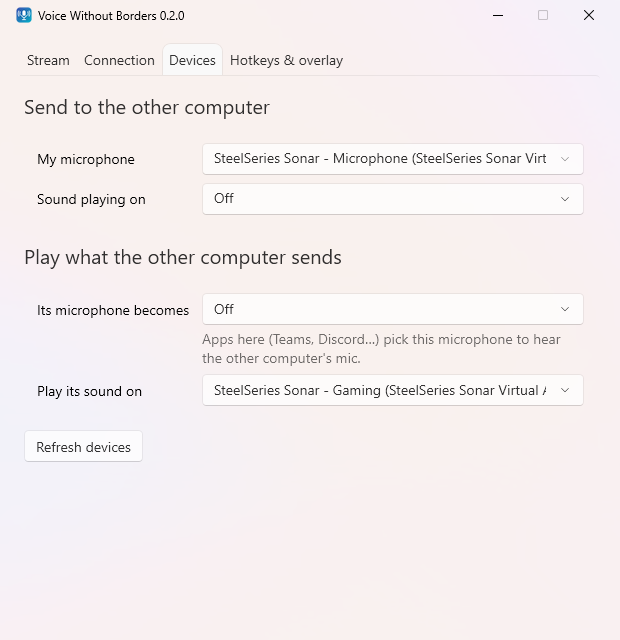
| My microphone | Headset mic | Off |
| Sound playing on | Off | Its speakers (where Teams plays) |
| Its microphone becomes | Off | CABLE Output (virtual mic) |
| Play its sound on | Headset | Off |
Your music plays on your PC as usual. The laptop’s call audio arrives in the same headset. In Teams on the laptop you pick CABLE Output as the microphone, and your headset mic shows up there.
The catch: Windows doesn’t let an app create a microphone, only drivers can. So the laptop needs a free virtual audio cable such as VB-CABLE. Whatever is played into CABLE Input comes out of the microphone CABLE Output, and the app does the playing for you. VB-CABLE is a driver, so installing it needs admin rights.
Headset on the work laptop (the light setup)
If your work laptop is locked down and you can’t install drivers, flip it around. Plug the headset into the laptop, and only send sound one way:
| Your PC | Work laptop (headset here) | |
|---|---|---|
| Sound playing on | Its speakers (where Spotify plays) | Off |
| Play its sound on | Off | Headset |
The laptop’s mic and call audio stay exactly as they are, because nothing about them changes. Your PC just streams its music into the laptop’s headset. No virtual cable anywhere. The music is played on the laptop, but nothing is installed or logged in there except Voice Without Borders itself.
Check your company’s policy before installing anything on a work laptop. The app installs per user, without admin rights, but “can install” and “allowed to install” are different things.
When it’s useful
- Remote work with a home PC and a work laptop side by side: the case above. Calls from one, music from the other, one headset.
- Two PCs, one call. You’re in a Discord or Teams call on the desktop but the thing you need to show is on the laptop. Send the laptop’s sound into the call too.
- Gaming PC + second PC. Hear a video, stream or chat from the second machine while playing, without alt-tabbing or a second pair of headphones.
- A machine with no sound card (a home server, a VM): give it a virtual cable and you can hear it on your desktop.
Things I cared about
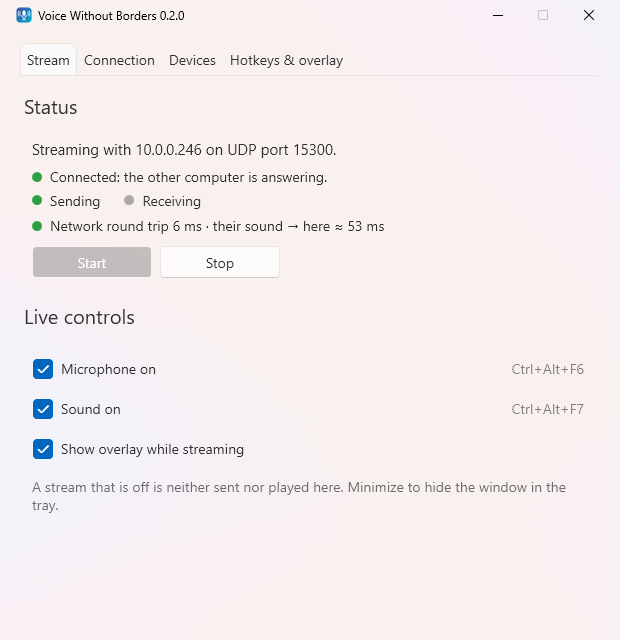
Low latency. Audio goes out in 5 ms chunks, uncompressed, over UDP. Lost packets are skipped instead of resent. On my wired LAN the network round trip is about 6 ms and the end-to-end delay is around 50 ms, which is fine for talking. The Stream tab shows the actual numbers, so you don’t have to guess. On busy Wi-Fi raise Max latency or use a cable.
Encryption. Both PCs share a key. Every packet is encrypted and authenticated with AES-256-GCM; packets made with any other key are dropped. The key is stored with Windows DPAPI under your account. It’s built for a trusted LAN, so don’t forward the port through your router. For two PCs in different places, put them on the same VPN (Tailscale, WireGuard) instead.
Forgetting it’s there. It minimizes to the tray, can start with Windows and connect by itself, and picks up again after either PC sleeps or hibernates. Global hotkeys toggle each stream (mute your mic to the laptop, or stop the music going over) from any app.
Seeing that it works. A small click-through overlay shows each active stream with a live level bar, so a glance tells you whether your mic is actually going out.

Limits
- Two computers only, and you type the other one’s name or IP. No discovery.
- Windows only (10/11, 64-bit).
- Uncompressed audio: about 1.6 Mbit/s per stream. Nothing for a LAN, but noticeable on a slow VPN.
- Watch out for feedback loops: don’t send the sound of a device you also play the incoming sound on.
Get it
- Download: latest release (installer or portable zip, no .NET install needed)
- Setup help: install guide and FAQ
- Source: github.com/Lunat1q/VoiceWithoutBorders, GPL-3.0
It’s built with .NET 10, WPF and NAudio. Bug reports and ideas are welcome in the repo’s issues.